> For the complete documentation index, see [llms.txt](https://messagebird.gitbook.io/toky-en/llms.txt). Markdown versions of documentation pages are available by appending `.md` to page URLs; this page is available as [Markdown](https://messagebird.gitbook.io/toky-en/readme/how-to-unblock-my-microphone-access-for-toky.md).

# How to unblock my microphone access for Toky?

If you have the microphone access blocked, you would see a **squared X** below the camera icon in the address bar of Google Chrome. This is the indication Chrome gives you to show you [app.toky.co](http://app.toky.co/) won't be able to access your microphone.

<figure><img src="https://766977813-files.gitbook.io/~/files/v0/b/gitbook-x-prod.appspot.com/o/spaces%2FMgClsjsTSlUrSU2WhwDe%2Fuploads%2Fgit-blob-4006f604e94a5e79533b7385e098e6a8c8c9fdff%2Fimage.png?alt=media" alt=""><figcaption></figcaption></figure>

To re-enable access, follow the steps below:

#### In your browser

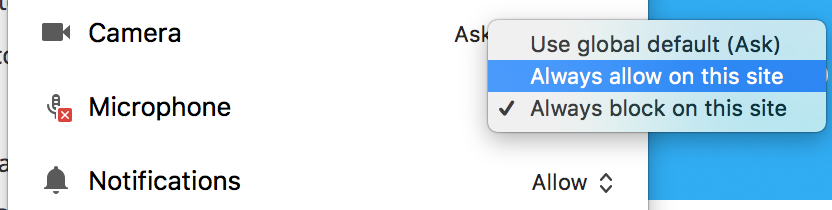
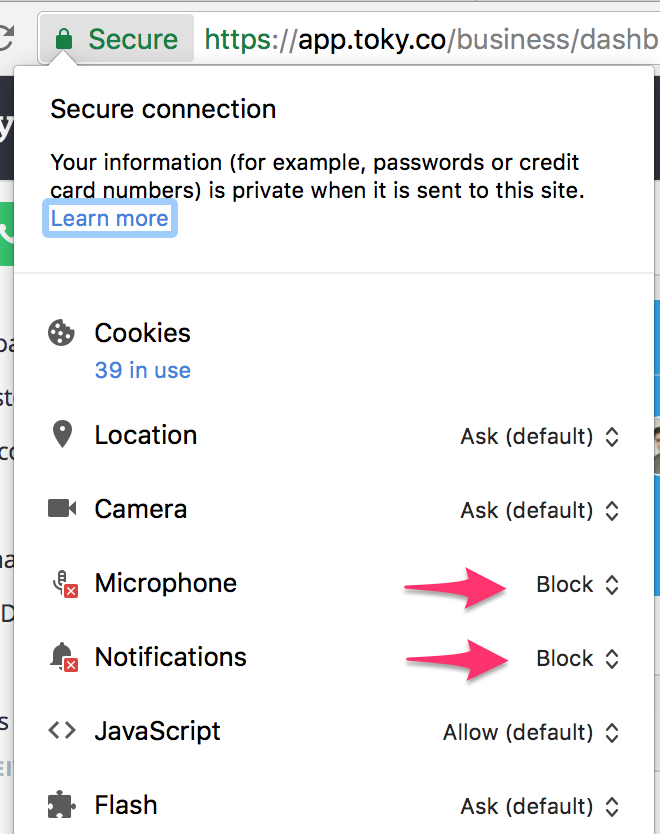
* Click on **Secure** in the address bar, and locate **Microphone** and **Notifications**

<figure><img src="https://766977813-files.gitbook.io/~/files/v0/b/gitbook-x-prod.appspot.com/o/spaces%2FMgClsjsTSlUrSU2WhwDe%2Fuploads%2Fgit-blob-c4f74c2501197860ac956a8d4c2cdc55a6709e1e%2Fimage__1_.png?alt=media" alt=""><figcaption></figcaption></figure>

* Click **Always allow on this site** for both of them

<figure><img src="https://766977813-files.gitbook.io/~/files/v0/b/gitbook-x-prod.appspot.com/o/spaces%2FMgClsjsTSlUrSU2WhwDe%2Fuploads%2Fgit-blob-8fea478a7f52ab4fce0cde367a205cfcec467d4b%2Fimage__2_.png?alt=media" alt=""><figcaption></figcaption></figure>

* Refresh the page, and the squared X should be gone

<figure><img src="https://766977813-files.gitbook.io/~/files/v0/b/gitbook-x-prod.appspot.com/o/spaces%2FMgClsjsTSlUrSU2WhwDe%2Fuploads%2Fgit-blob-8eb6b953e4d3ef565814206e258cb4907ab13981%2Fimage__3_.png?alt=media" alt=""><figcaption></figcaption></figure>

If the error persists, please go to you Chrome Microphone Settings:

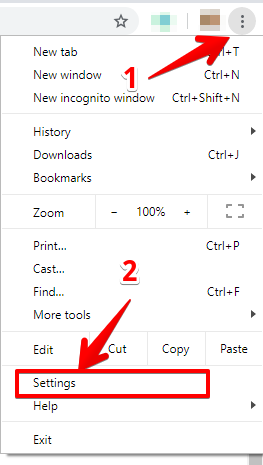
* Go to your **Chrome Settings** page

<figure><img src="https://766977813-files.gitbook.io/~/files/v0/b/gitbook-x-prod.appspot.com/o/spaces%2FMgClsjsTSlUrSU2WhwDe%2Fuploads%2Fgit-blob-45f3888b53af5b24228c9726b84aaeb0975c254e%2Fimage__4_.png?alt=media" alt=""><figcaption></figcaption></figure>

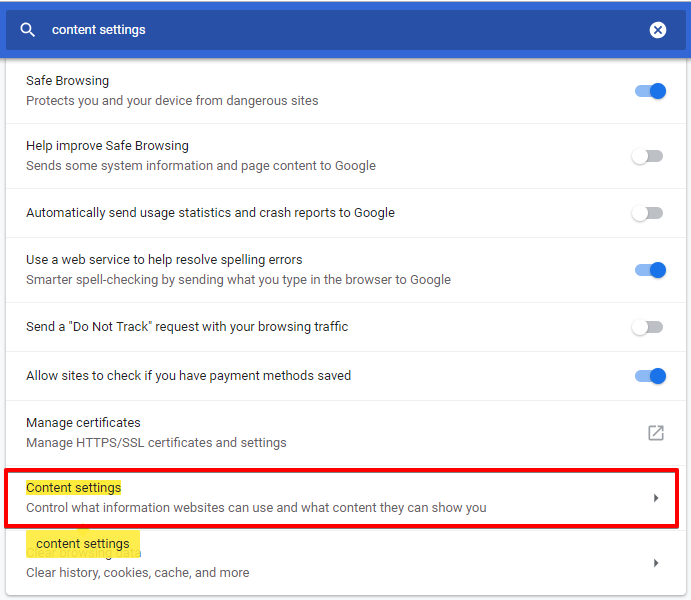
* Search for **content settings** and click on the selected option

<figure><img src="https://766977813-files.gitbook.io/~/files/v0/b/gitbook-x-prod.appspot.com/o/spaces%2FMgClsjsTSlUrSU2WhwDe%2Fuploads%2Fgit-blob-0e09b68ee0a5cd9ae037c18e286417e6453a22d4%2Fimage__5_.png?alt=media" alt=""><figcaption></figcaption></figure>

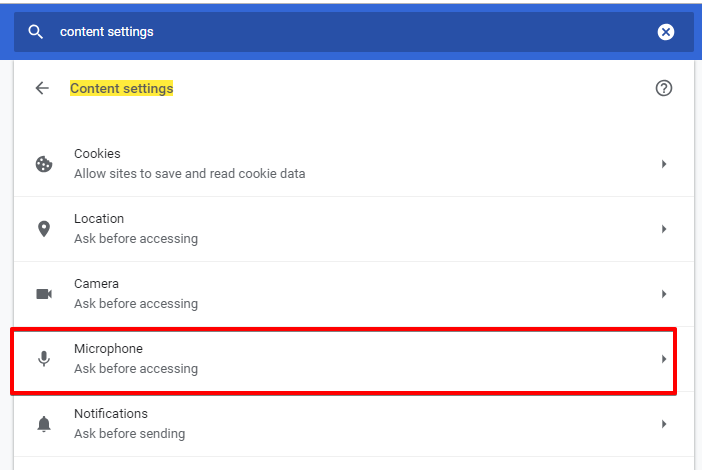
* Click on **Microphone**

<figure><img src="https://766977813-files.gitbook.io/~/files/v0/b/gitbook-x-prod.appspot.com/o/spaces%2FMgClsjsTSlUrSU2WhwDe%2Fuploads%2Fgit-blob-2cdefec1ca9e02b868ca539a9c6e9350b5829487%2Fimage__6_.png?alt=media" alt=""><figcaption></figcaption></figure>

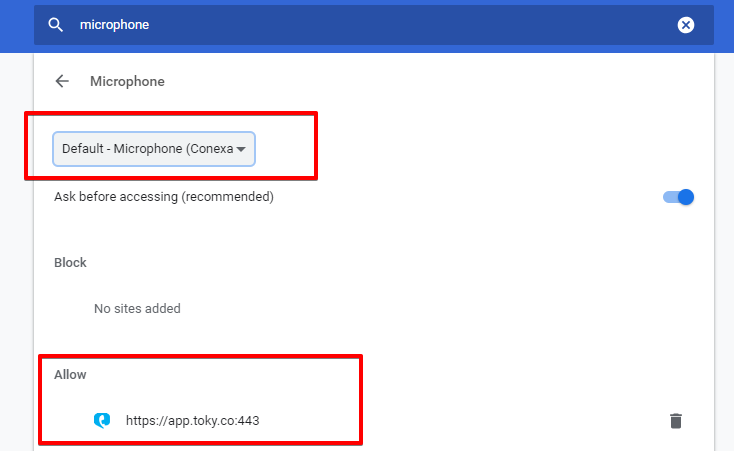
* Check that the correct microphone is selected and that the Toky app link is allowed. *If the link is blocked, please remove the Toky link from the blocked sites.*

<figure><img src="https://766977813-files.gitbook.io/~/files/v0/b/gitbook-x-prod.appspot.com/o/spaces%2FMgClsjsTSlUrSU2WhwDe%2Fuploads%2Fgit-blob-d2744e04442a22dde6edeacd0fbd2261d2e4ed1f%2Fimage__7_.png?alt=media" alt=""><figcaption></figcaption></figure>

\
If the problem persist, please [check your headset](https://tokyapp.zendesk.com/hc/en-us/articles/360020659217) or contact our customer service.

#### On your Mac

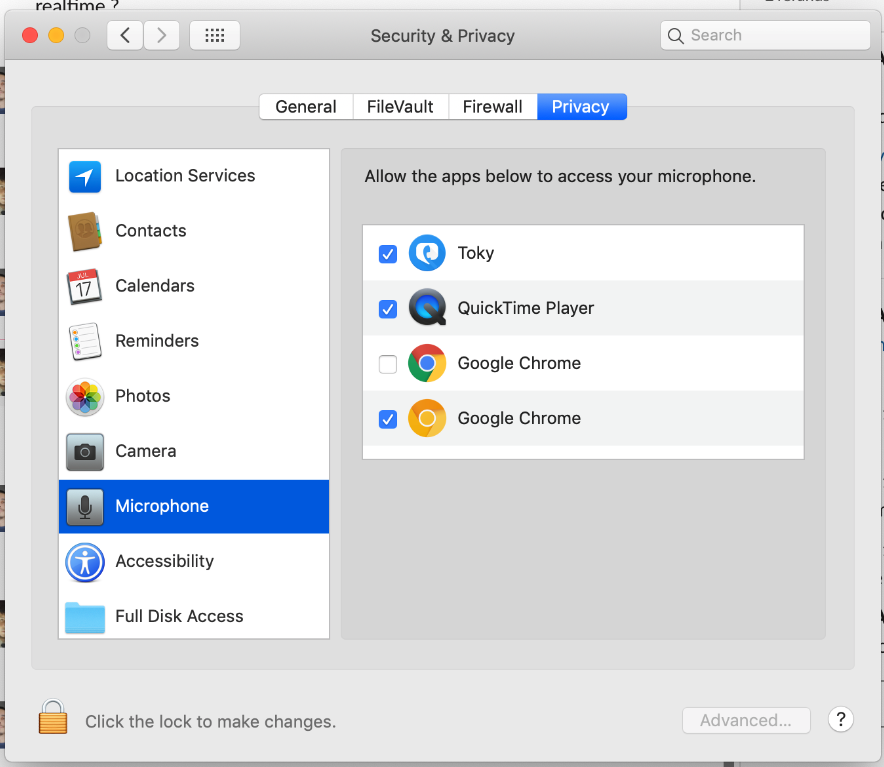
Make sure Toky (desktop app) and Google Chrome (for the web app) are allowed to access your microphone by checking your *Security & Privacy* settings

<figure><img src="https://766977813-files.gitbook.io/~/files/v0/b/gitbook-x-prod.appspot.com/o/spaces%2FMgClsjsTSlUrSU2WhwDe%2Fuploads%2Fgit-blob-4da275c50a22fd0671324af684fbc07f16e44b3a%2Fimage__8_.png?alt=media" alt=""><figcaption></figcaption></figure>