> For the complete documentation index, see [llms.txt](https://messagebird.gitbook.io/toky-en/llms.txt). Markdown versions of documentation pages are available by appending `.md` to page URLs; this page is available as [Markdown](https://messagebird.gitbook.io/toky-en/integrationstokyapp/integrate-toky-dialer-to-salesforce-classic.md).

# Integrate Toky Dialer to Salesforce Classic

**There are two types of integrations of Toky with Salesforce:**

1. [To create call tasks associated with leads and contacts](https://tokyapp.zendesk.com/hc/en-us/articles/360020813918). Note: with this integrations you cannot receive or make calls within Salesforce.
2. To **make and receive calls within Salesforce**, please continue with the steps below.

**This tutorial is to connect Toky to Salesforce as a Console App, to be able to make and receive calls within Salesforce. Console is only available in Professional**, **Enterprise**, **Performance**, **Unlimited**, and **Developer** Editions.\
**Note: If you want to also log every call (as Task) automatically into Salesforce use** [this](https://tokyapp.zendesk.com/hc/en-us/articles/360020813918) **tutorial.**

* Start by logging in to your Salesforce account [here](https://login.salesforce.com/).
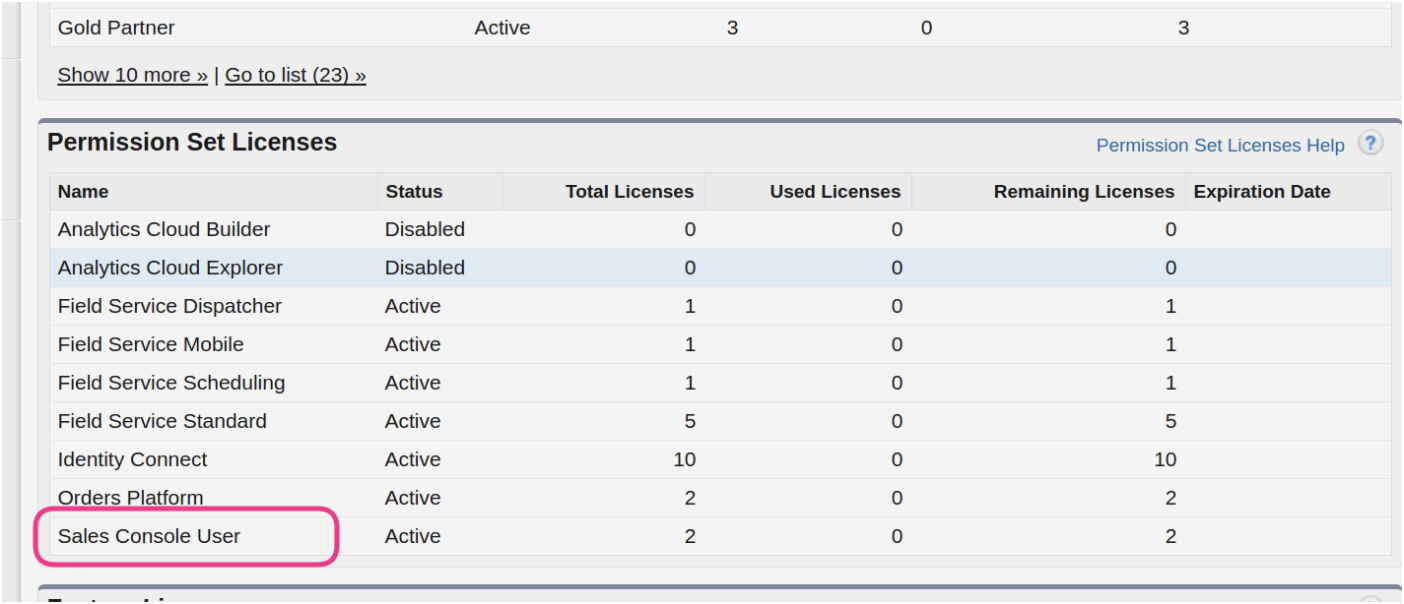
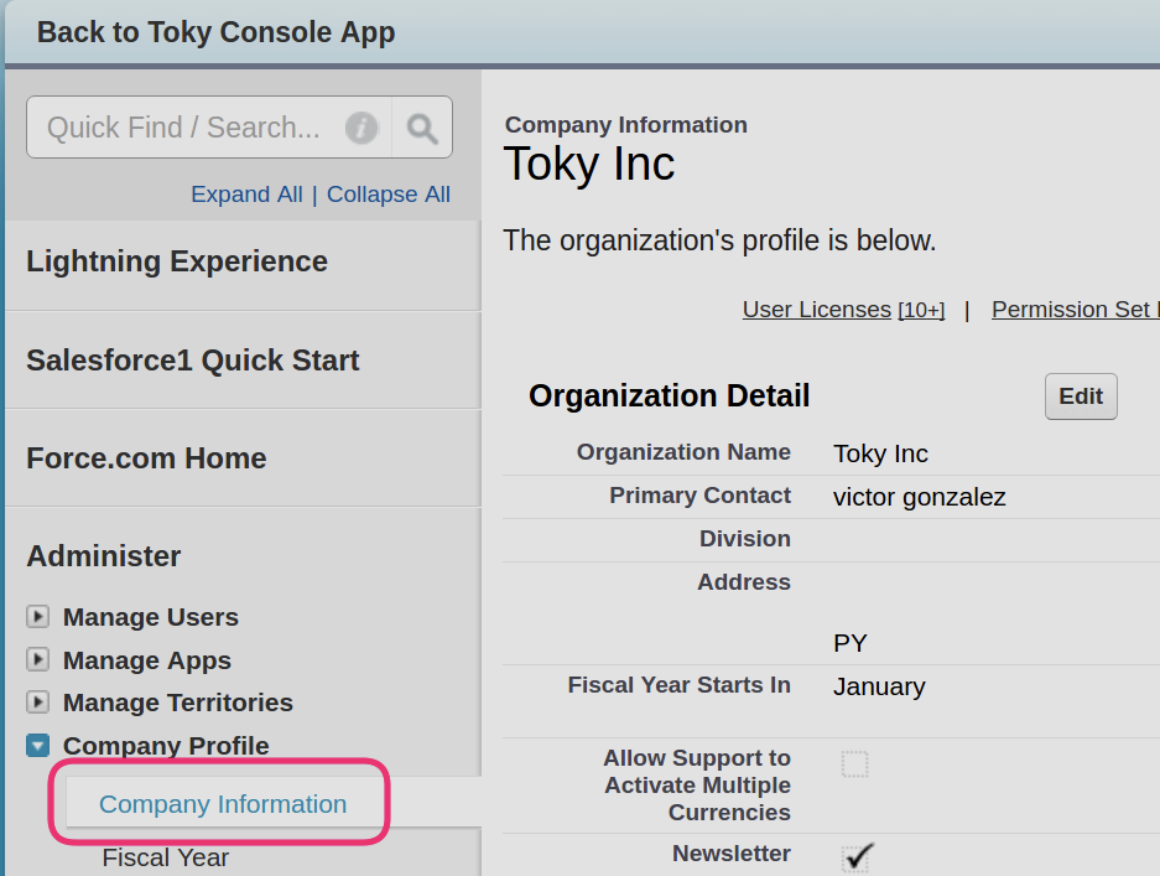
* Before creating the console app for Toky, please check that you have Permission Set Licenses for Sales Console User. Go to Company Profile -> Company Information.

<figure><img src="https://766977813-files.gitbook.io/~/files/v0/b/gitbook-x-prod.appspot.com/o/spaces%2FMgClsjsTSlUrSU2WhwDe%2Fuploads%2Fgit-blob-83f9e360a27b87b061cdfce2d538cdca05ecb56f%2FScreenshot_2021-08-03_at_09.20.33.png?alt=media" alt=""><figcaption></figcaption></figure>

* Under the Permission Set Licenses, look for Sales Console User, to see how many licenses are available.

<figure><img src="https://766977813-files.gitbook.io/~/files/v0/b/gitbook-x-prod.appspot.com/o/spaces%2FMgClsjsTSlUrSU2WhwDe%2Fuploads%2Fgit-blob-7c8870ffa925ad6cae0074c81d4fbc7de03e76b4%2FScreenshot_2021-08-03_at_09.19.58.png?alt=media" alt=""><figcaption></figcaption></figure>

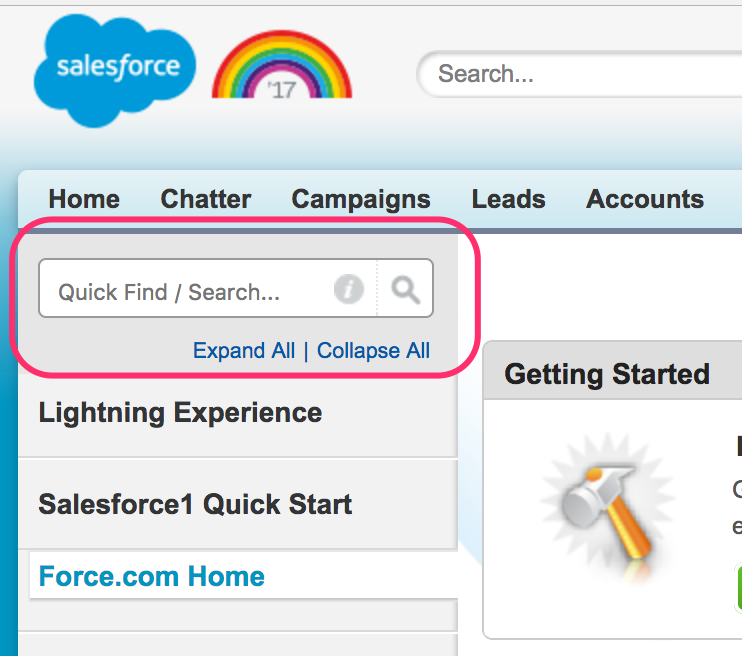
* After checking that you have enough licenses, go to **Quick Find**, search for *"**apps"*** (no need to press \<enter>).

<figure><img src="https://766977813-files.gitbook.io/~/files/v0/b/gitbook-x-prod.appspot.com/o/spaces%2FMgClsjsTSlUrSU2WhwDe%2Fuploads%2Fgit-blob-e540b9d2c172359d51822536f19c32a729ec8a0f%2Ftoky-salesforce-quickfind.png?alt=media" alt=""><figcaption></figcaption></figure>

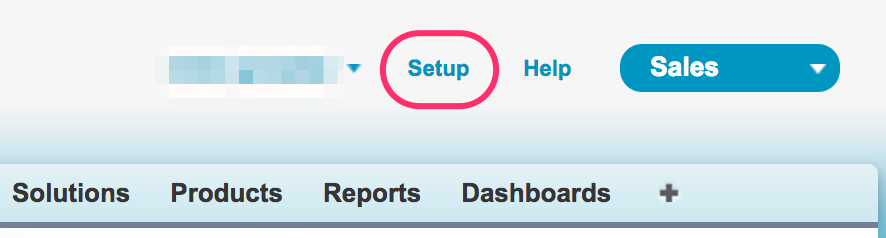
* If you can't find Quick Find, **click on Setup** in the top menu bar at the righthand side, and repeat the step above.

<figure><img src="https://766977813-files.gitbook.io/~/files/v0/b/gitbook-x-prod.appspot.com/o/spaces%2FMgClsjsTSlUrSU2WhwDe%2Fuploads%2Fgit-blob-7b92555a11705d19fd97059d7c7b01e042659de2%2Ftoky-salesforce-where-is-quick-find.png?alt=media" alt=""><figcaption></figcaption></figure>

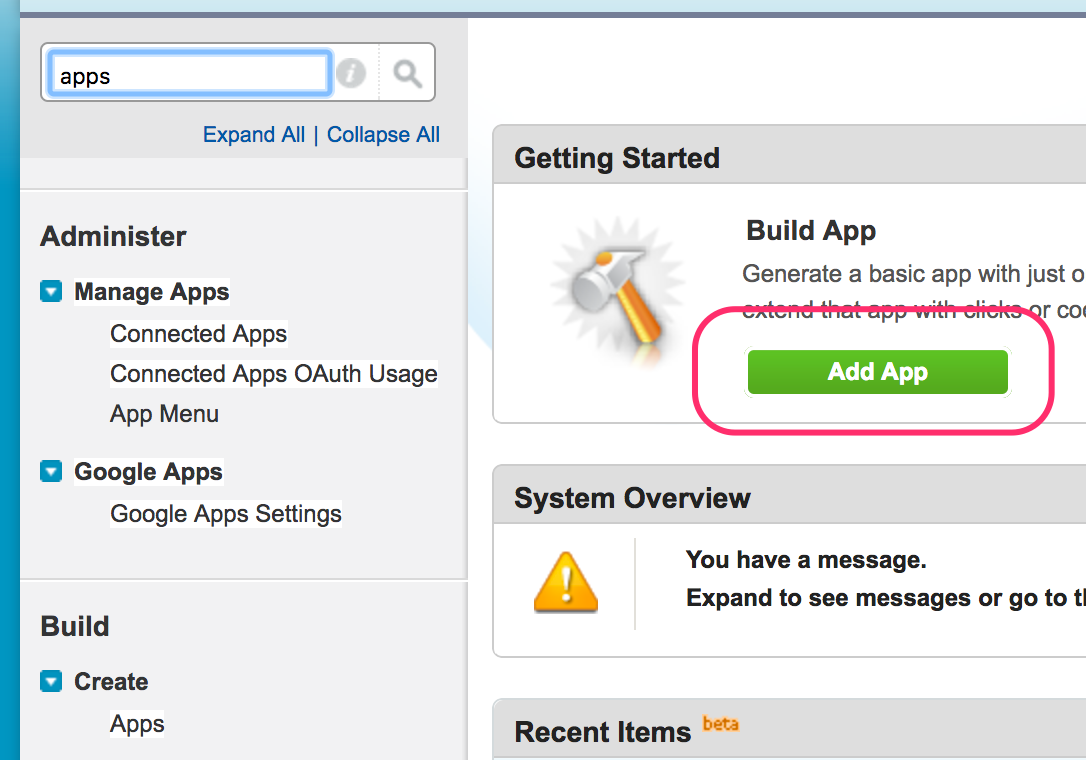
* After searching for *"apps"*, click on **Add App**.

<figure><img src="https://766977813-files.gitbook.io/~/files/v0/b/gitbook-x-prod.appspot.com/o/spaces%2FMgClsjsTSlUrSU2WhwDe%2Fuploads%2Fgit-blob-1e5355feb893abe3510aa382b9bf7dab36ae05d4%2Ftoky-salesforce-add-app.png?alt=media" alt=""><figcaption></figcaption></figure>

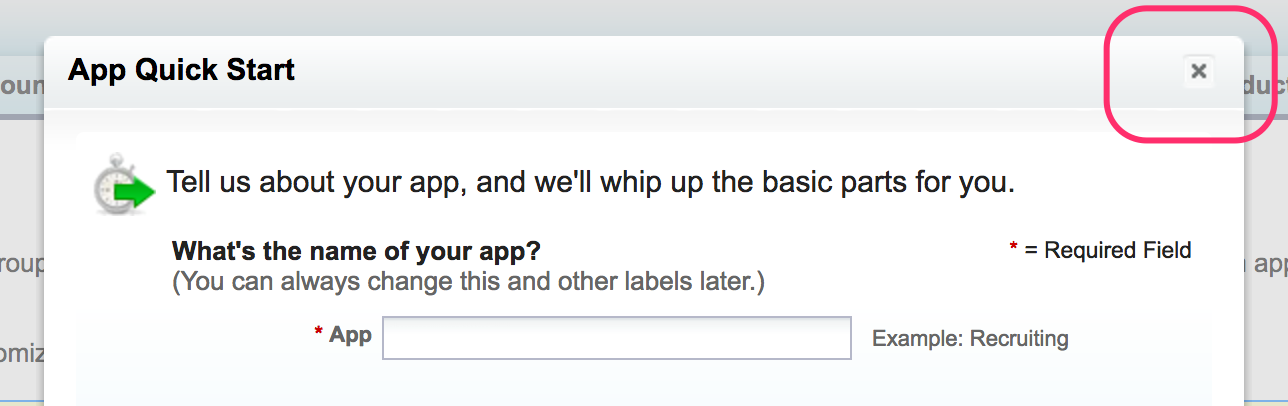
* * You will notice the **App Quick Start** dialog, but we don't need it. **Close it to continue.1\`**

<figure><img src="https://766977813-files.gitbook.io/~/files/v0/b/gitbook-x-prod.appspot.com/o/spaces%2FMgClsjsTSlUrSU2WhwDe%2Fuploads%2Fgit-blob-40532cab87abec1d77943200e0609b1eb1d298e5%2Ftoky-salesforce-add-app-2.png?alt=media" alt=""><figcaption></figcaption></figure>

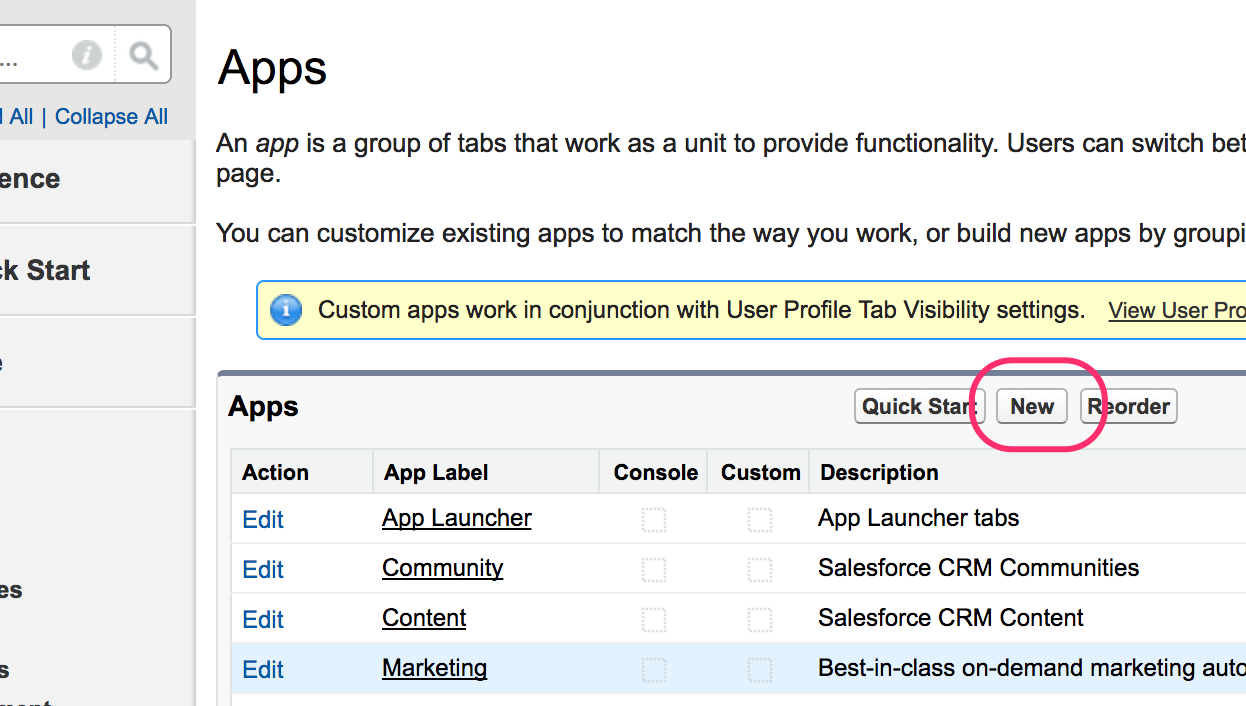
* Locate and click on the **New** button.

<figure><img src="https://766977813-files.gitbook.io/~/files/v0/b/gitbook-x-prod.appspot.com/o/spaces%2FMgClsjsTSlUrSU2WhwDe%2Fuploads%2Fgit-blob-094b2459a12a2e1b56b95db58a191f8f772e12f7%2Ftoky-salesforce-new-app.png?alt=media" alt=""><figcaption></figcaption></figure>

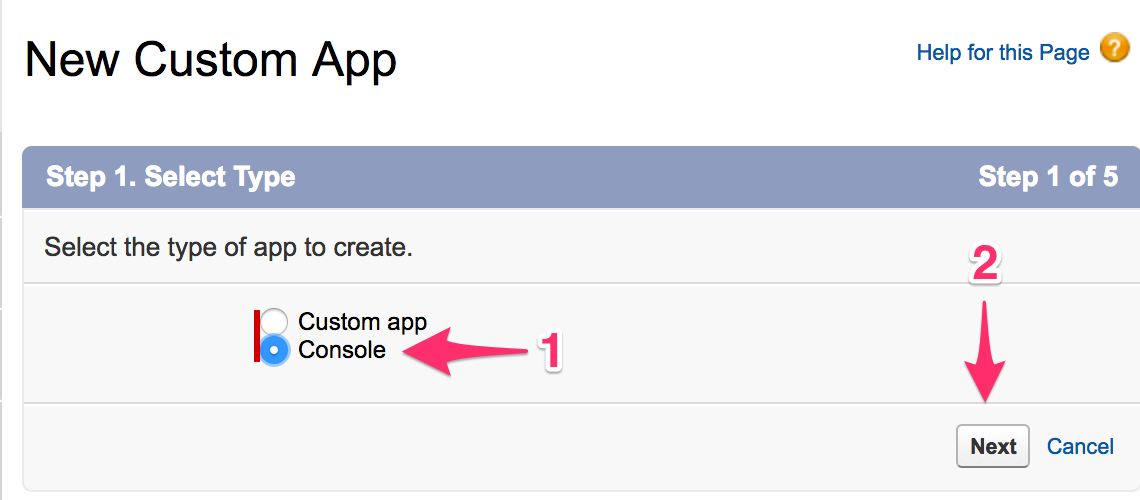
* In New Custom App, select **Console** and click on **Next**. If you can't find *Console*, you may not have the license to connect Salesforce to third-party apps. If that's the case, please contact our support team.

<figure><img src="https://766977813-files.gitbook.io/~/files/v0/b/gitbook-x-prod.appspot.com/o/spaces%2FMgClsjsTSlUrSU2WhwDe%2Fuploads%2Fgit-blob-7972dbf9720ad597f2d827023d98b46aaaa11a15%2Ftoky-salesfoce-console.png?alt=media" alt=""><figcaption></figcaption></figure>

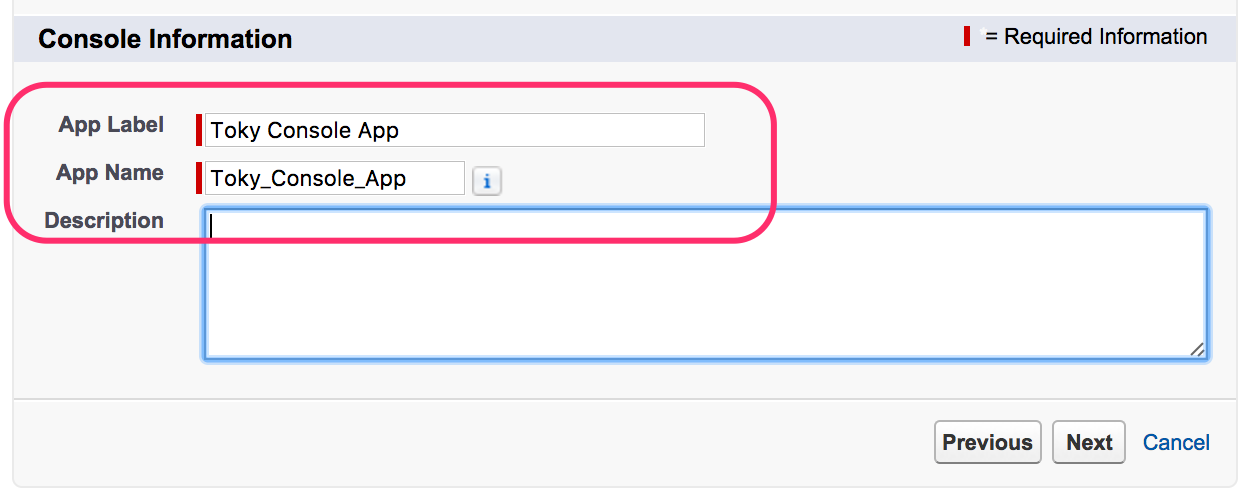
* In Step 2, enter *"**Toky Console App**"* as App Label, and *"**Toky\_Console\_App**"* as App Name. Click **Next** to continue.

<figure><img src="https://766977813-files.gitbook.io/~/files/v0/b/gitbook-x-prod.appspot.com/o/spaces%2FMgClsjsTSlUrSU2WhwDe%2Fuploads%2Fgit-blob-678c533b46260a752a3d5aff09d57d8196d76c0e%2Ftoky-salesforce-console-app-name.png?alt=media" alt=""><figcaption></figcaption></figure>

* In Step 3 you can select an icon for the app, or just click **Next** to continue.
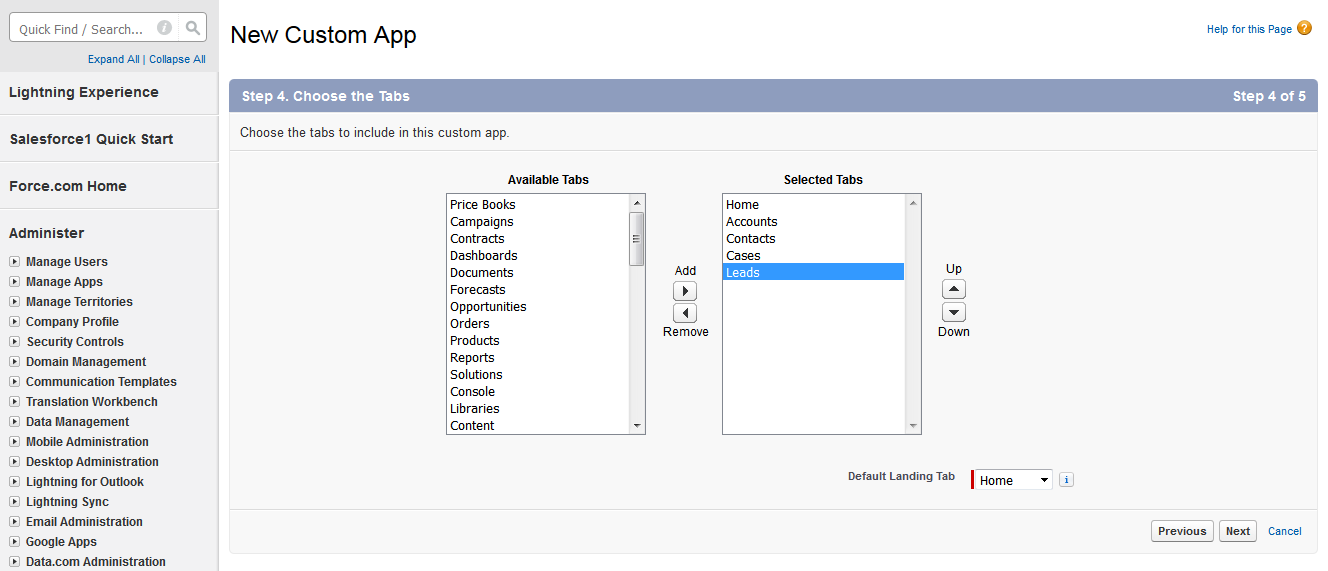
* In Step 4, select at least the following tabs: **accounts, contacts, cases** and **leads**. Click **Next** afterwards.

<figure><img src="https://766977813-files.gitbook.io/~/files/v0/b/gitbook-x-prod.appspot.com/o/spaces%2FMgClsjsTSlUrSU2WhwDe%2Fuploads%2Fgit-blob-c510fb4e25fa6b43aa2b904996a7950436421885%2Fnew-select_tabs.png?alt=media" alt=""><figcaption></figcaption></figure>

**9**. In Step 5, there's nothing to be changed. Click **Next** to continue\_.\_

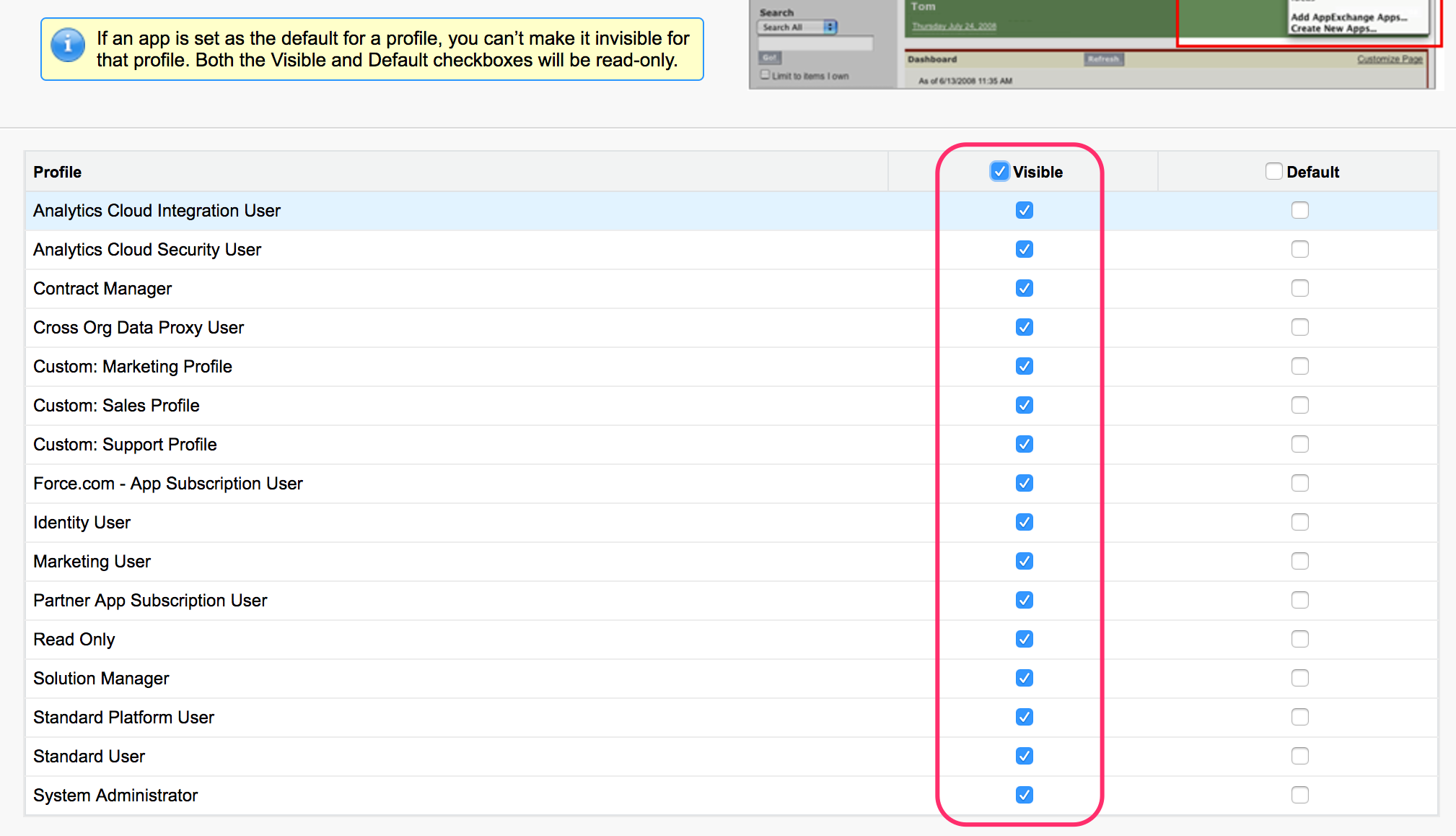
**10.** In Step 6, select **all profiles** unless you have some special restrictions. Click **Save** to continue.

<figure><img src="https://766977813-files.gitbook.io/~/files/v0/b/gitbook-x-prod.appspot.com/o/spaces%2FMgClsjsTSlUrSU2WhwDe%2Fuploads%2Fgit-blob-ae40c568c299299d3be1c516b11df6b4e84b91fe%2Ftoky-salesforce-assign-profiles.png?alt=media" alt=""><figcaption></figcaption></figure>

* If everything went fine. the **Toky Console App** should be listed in the **Apps v**iew now.

<figure><img src="https://766977813-files.gitbook.io/~/files/v0/b/gitbook-x-prod.appspot.com/o/spaces%2FMgClsjsTSlUrSU2WhwDe%2Fuploads%2Fgit-blob-dd57c769d5387908eafa83a3a7315b224aa058d5%2Ftoky-salesforce-console-app-listed.png?alt=media" alt=""><figcaption></figcaption></figure>

### Installing Open CTI Integration <a href="#installing-open-cti-integration" id="installing-open-cti-integration"></a>

To continue with the integration:

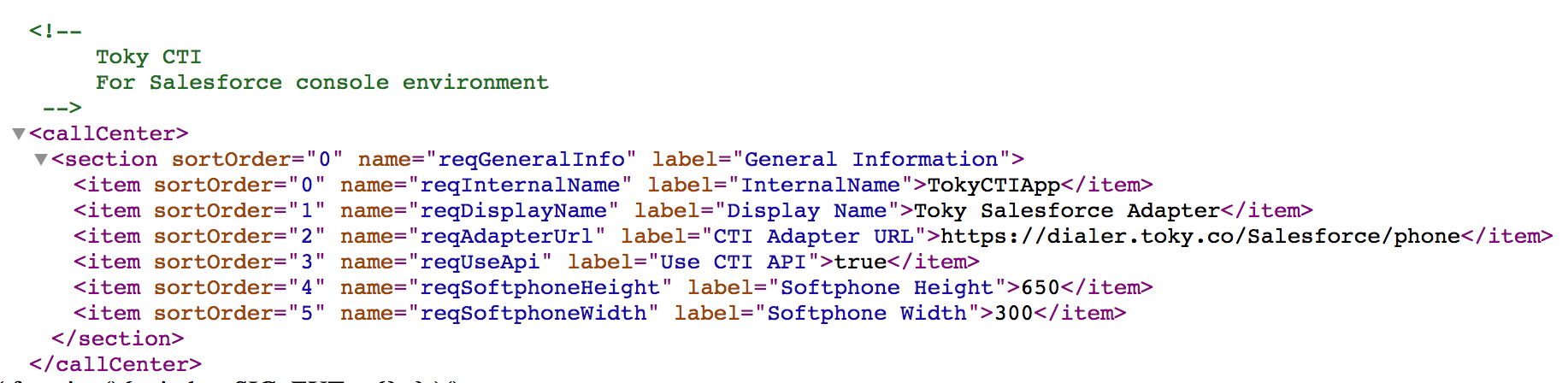
* Download the Toky CTI Integration configuration file from [here](https://toky.co/salesforce-cti). It's and XML (text) file that will look similar to this:

<figure><img src="https://766977813-files.gitbook.io/~/files/v0/b/gitbook-x-prod.appspot.com/o/spaces%2FMgClsjsTSlUrSU2WhwDe%2Fuploads%2Fgit-blob-4c9d7bedb62ece059c91aa0f1326fb9a7c664bf7%2Ftoky-salesforce-opencti.png?alt=media" alt=""><figcaption></figcaption></figure>

* Login to your Salesforce account (you must have administrator permissions).
* Go to **Setup**.
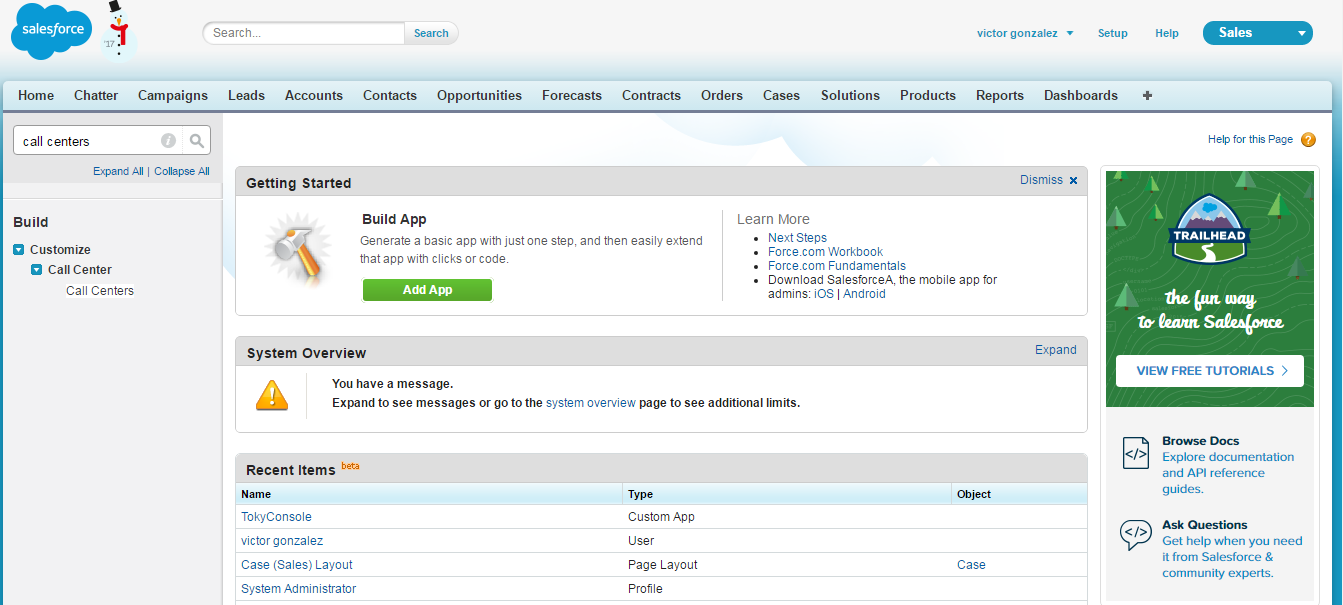
* On the lefthand panel, in Quick Find, search for "**call centers**", then click on **Call Centers.**

<figure><img src="https://766977813-files.gitbook.io/~/files/v0/b/gitbook-x-prod.appspot.com/o/spaces%2FMgClsjsTSlUrSU2WhwDe%2Fuploads%2Fgit-blob-bda95c61337ee5244e6eafc5a3236b3d358c75aa%2Ffind_callcenter.png?alt=media" alt=""><figcaption></figcaption></figure>

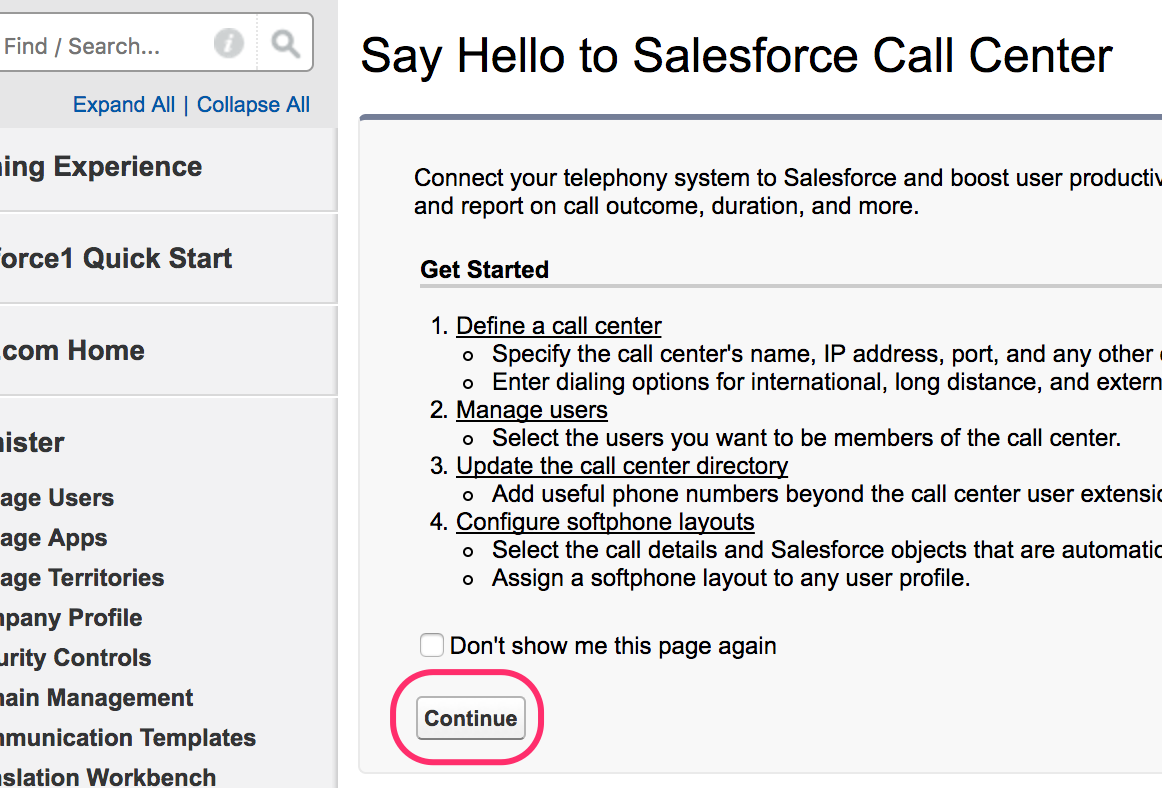
* If the Get Started page shows, just **Continue.**

<figure><img src="https://766977813-files.gitbook.io/~/files/v0/b/gitbook-x-prod.appspot.com/o/spaces%2FMgClsjsTSlUrSU2WhwDe%2Fuploads%2Fgit-blob-83c3345a3cd3b3da46440c6e3af6d1114e7dfd2d%2Ftoky-salesforce-call-center.png?alt=media" alt=""><figcaption></figcaption></figure>

* In All Call Centers page, click on **Import**

<figure><img src="https://766977813-files.gitbook.io/~/files/v0/b/gitbook-x-prod.appspot.com/o/spaces%2FMgClsjsTSlUrSU2WhwDe%2Fuploads%2Fgit-blob-1e085e20197e1b66d1eb8d8d5298736f178805c8%2Ftoky-salesforce-all-callcenters.png?alt=media" alt=""><figcaption></figcaption></figure>

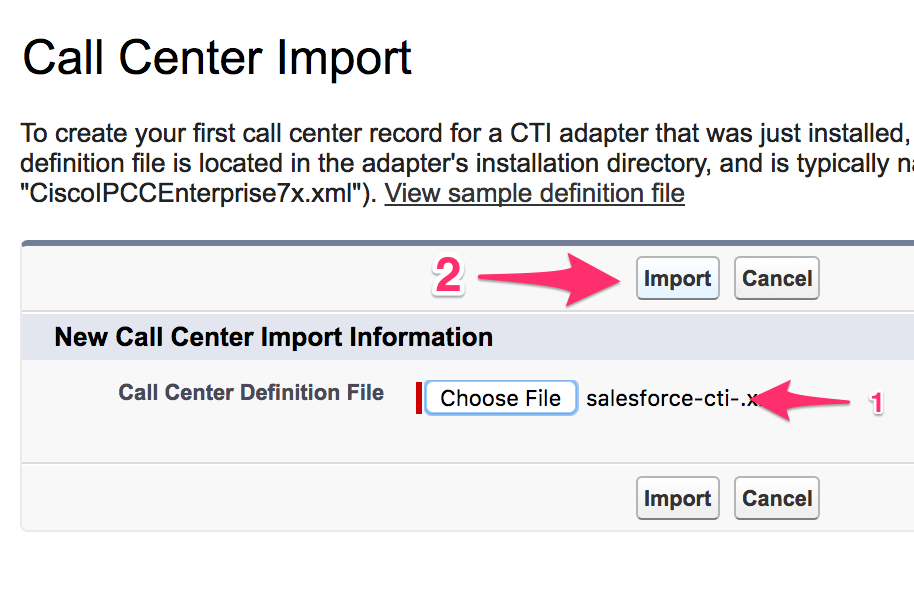
* In the Call Center Import page, select the call center definition file (XML file) you downloaded before and click on **Import.**

<figure><img src="https://766977813-files.gitbook.io/~/files/v0/b/gitbook-x-prod.appspot.com/o/spaces%2FMgClsjsTSlUrSU2WhwDe%2Fuploads%2Fgit-blob-d0a213c8ca06b3a6ada92ede9020fe6c4a2c500c%2Ftoky-salesforce-opencti-import.png?alt=media" alt=""><figcaption></figcaption></figure>

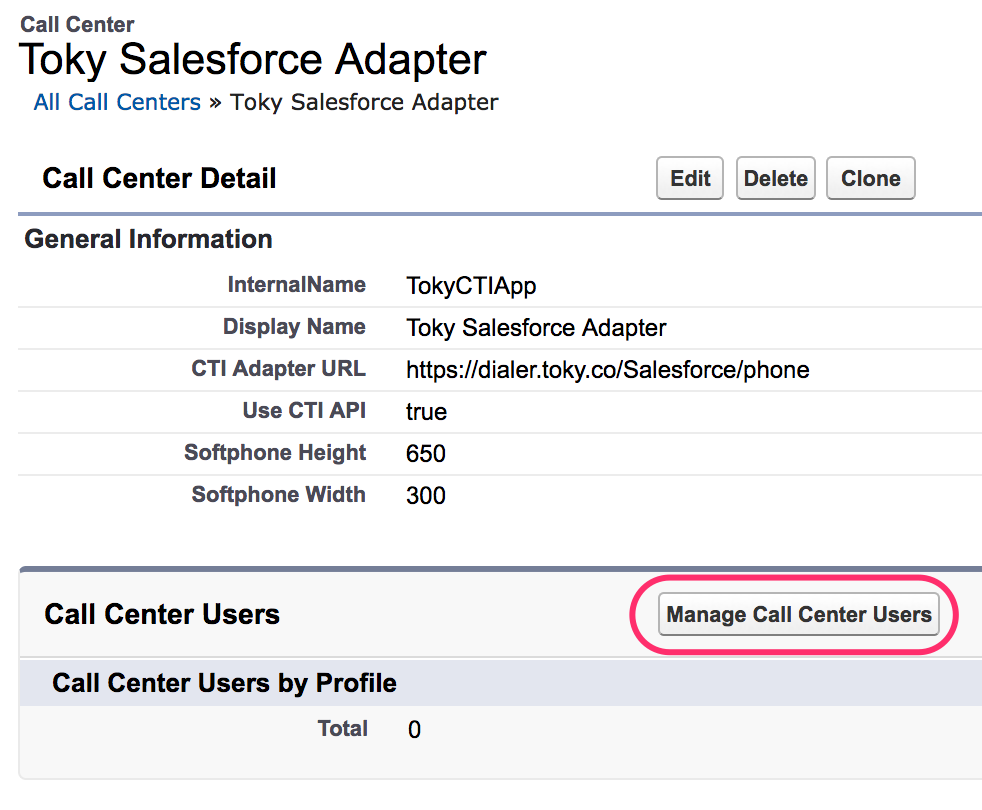
* You should see a page like the following after the importation finished. You will now need to add the users who can use this app. Click on **Manage Call Center Users** and add the ones with access to this app.

<figure><img src="https://766977813-files.gitbook.io/~/files/v0/b/gitbook-x-prod.appspot.com/o/spaces%2FMgClsjsTSlUrSU2WhwDe%2Fuploads%2Fgit-blob-f86ad92fc8ecd66aadf0df861e42a6daa1f8fd0e%2Ftoky-salesforce-manage-users.png?alt=media" alt=""><figcaption></figcaption></figure>

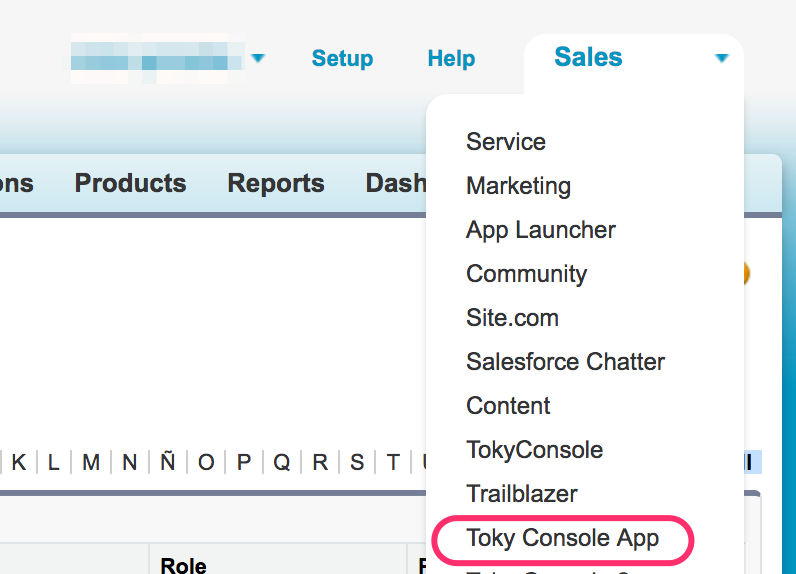
* After a successful installation of the Toky Console App and Toky CTI Integration, you can now access it using the top righthand menu.

<figure><img src="https://766977813-files.gitbook.io/~/files/v0/b/gitbook-x-prod.appspot.com/o/spaces%2FMgClsjsTSlUrSU2WhwDe%2Fuploads%2Fgit-blob-171a0f8fa81c96d3c40f42a6d6954837c902468f%2Ftoky-salesforce-toky-console-app.png?alt=media" alt=""><figcaption></figcaption></figure>

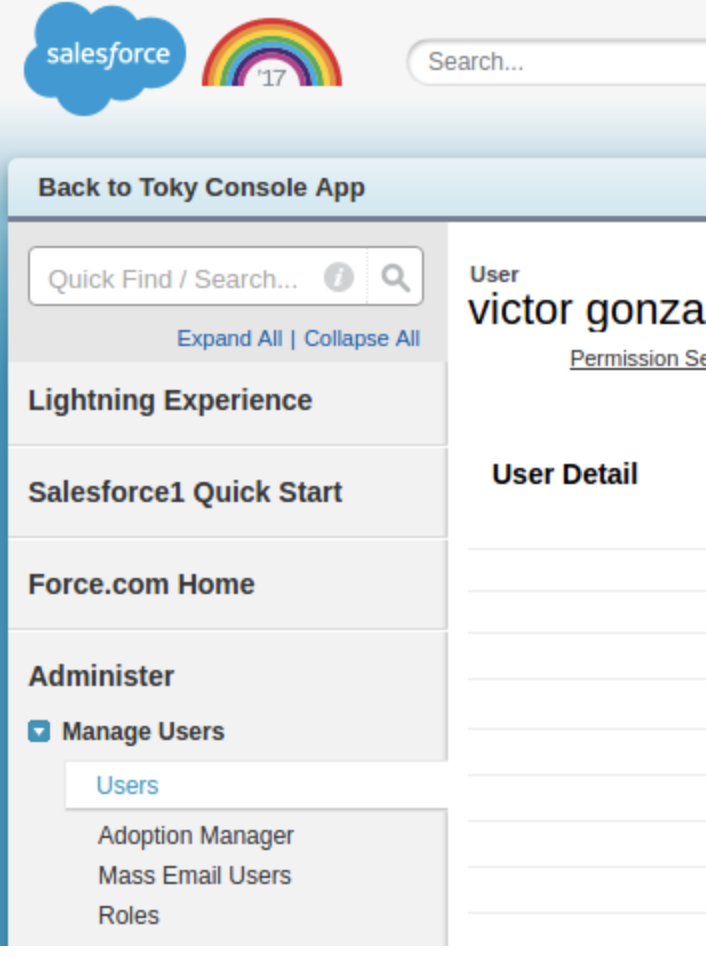
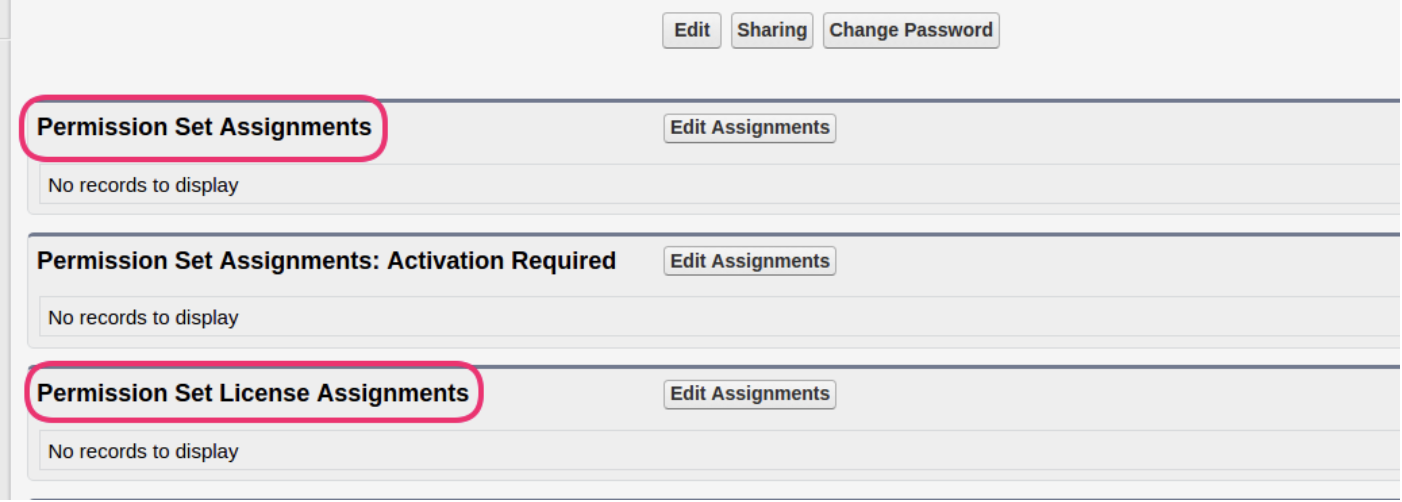
* Optional: If the user cannot see the Toky Console App option, check the Permission Set Assignment and Permission Set License Assignment of the user. Go to Administer -> Manage User -> Users and select the User to set the Permissions.

<figure><img src="https://766977813-files.gitbook.io/~/files/v0/b/gitbook-x-prod.appspot.com/o/spaces%2FMgClsjsTSlUrSU2WhwDe%2Fuploads%2Fgit-blob-f201bbce7d13222f192f98fbe8b9b0fd3f2ba2fd%2FScreenshot_2021-08-03_at_09.22.17.png?alt=media" alt=""><figcaption></figcaption></figure>

<figure><img src="https://766977813-files.gitbook.io/~/files/v0/b/gitbook-x-prod.appspot.com/o/spaces%2FMgClsjsTSlUrSU2WhwDe%2Fuploads%2Fgit-blob-8cf736d1664f8bf4a749d474cc38645e1a00ce37%2FScreenshot_2021-08-03_at_09.21.59.png?alt=media" alt=""><figcaption></figcaption></figure>

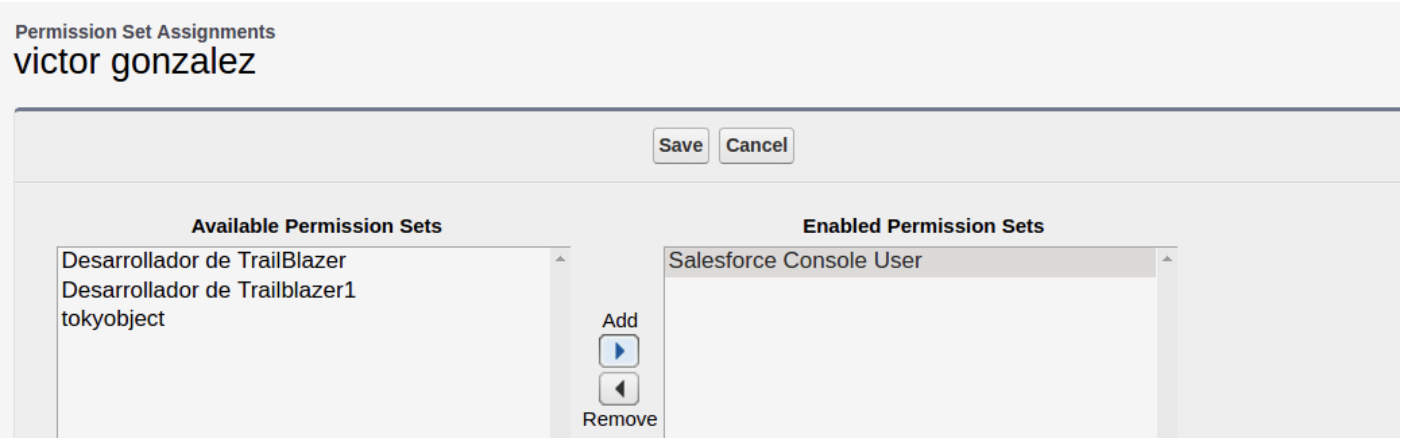
* Make sure the user have in Permission Set Assignments, Salesforce Console User.

<figure><img src="https://766977813-files.gitbook.io/~/files/v0/b/gitbook-x-prod.appspot.com/o/spaces%2FMgClsjsTSlUrSU2WhwDe%2Fuploads%2Fgit-blob-6826e2cddd0149c55df1a8003811ae7d69a2855f%2FScreenshot_2021-08-03_at_09.21.44.png?alt=media" alt=""><figcaption></figcaption></figure>

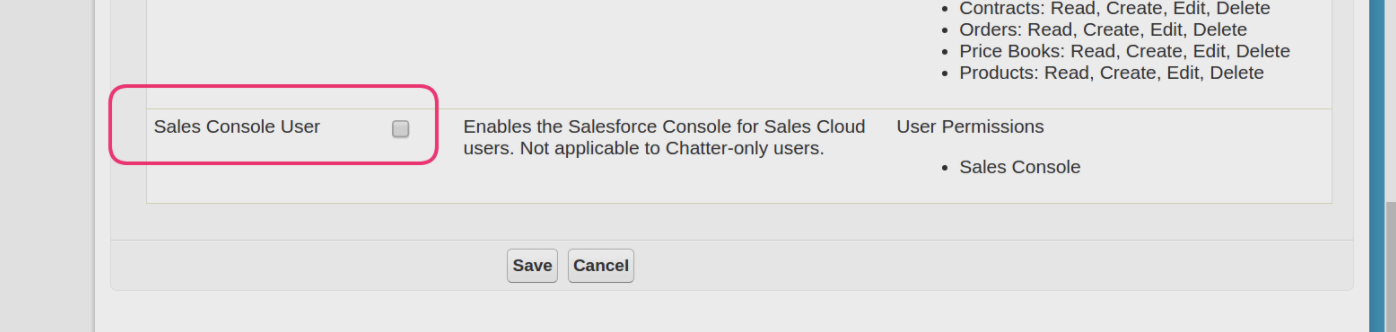
* Also, make sure the user have checked Sales Console User in Permission Set License Assignments.

<figure><img src="https://766977813-files.gitbook.io/~/files/v0/b/gitbook-x-prod.appspot.com/o/spaces%2FMgClsjsTSlUrSU2WhwDe%2Fuploads%2Fgit-blob-c51e1caadd91b68235b5661ba31578634ee8fda3%2FScreenshot_2021-08-03_at_09.21.37.png?alt=media" alt=""><figcaption></figcaption></figure>

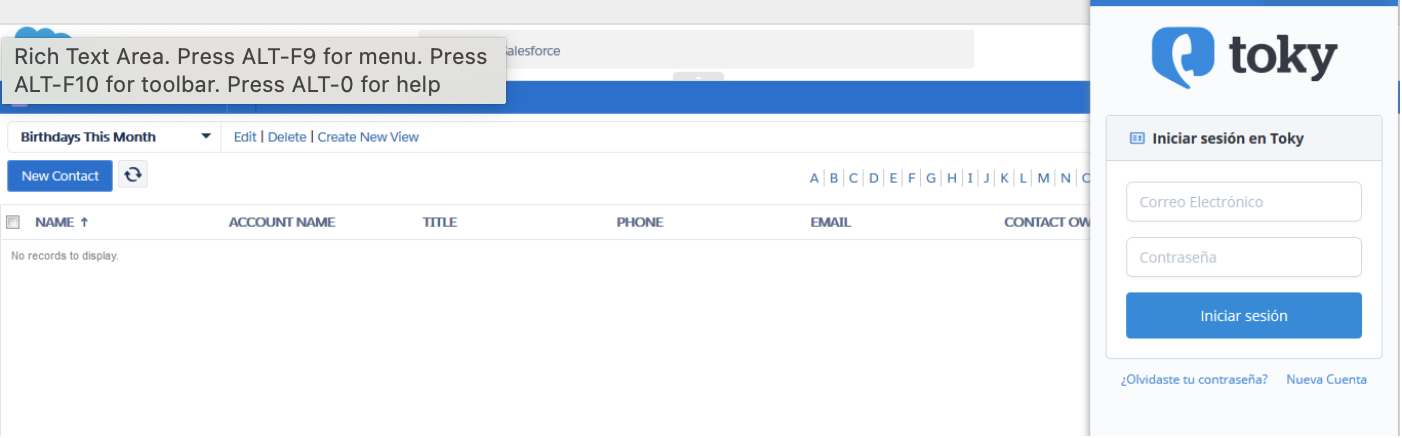
* Log in to Toky and start making/receiving calls ☺️.
<figure><img src="https://766977813-files.gitbook.io/~/files/v0/b/gitbook-x-prod.appspot.com/o/spaces%2FMgClsjsTSlUrSU2WhwDe%2Fuploads%2Fgit-blob-65b4868355e5c351c67d039c8aa4cf7551ff593d%2FScreenshot_2021-08-03_at_09.21.30.png?alt=media" alt=""><figcaption></figcaption></figure>