> For the complete documentation index, see [llms.txt](https://messagebird.gitbook.io/applications/llms.txt). Markdown versions of documentation pages are available by appending `.md` to page URLs; this page is available as [Markdown](https://messagebird.gitbook.io/applications/analytics/campaign-reports/how-to/view-a-b-test-campaign-reports.md).
# View A/B test campaign reports
Understand how your test campaigns have performed.
If you've [run an A/B test](/applications/campaigns/campaigns/how-to/run-an-a-b-test.md) as part of a campaign, you'll want to know which variation performed best and by how much. Once your A/B test has been completed, you can analyze the test results in the Campaign performance report.
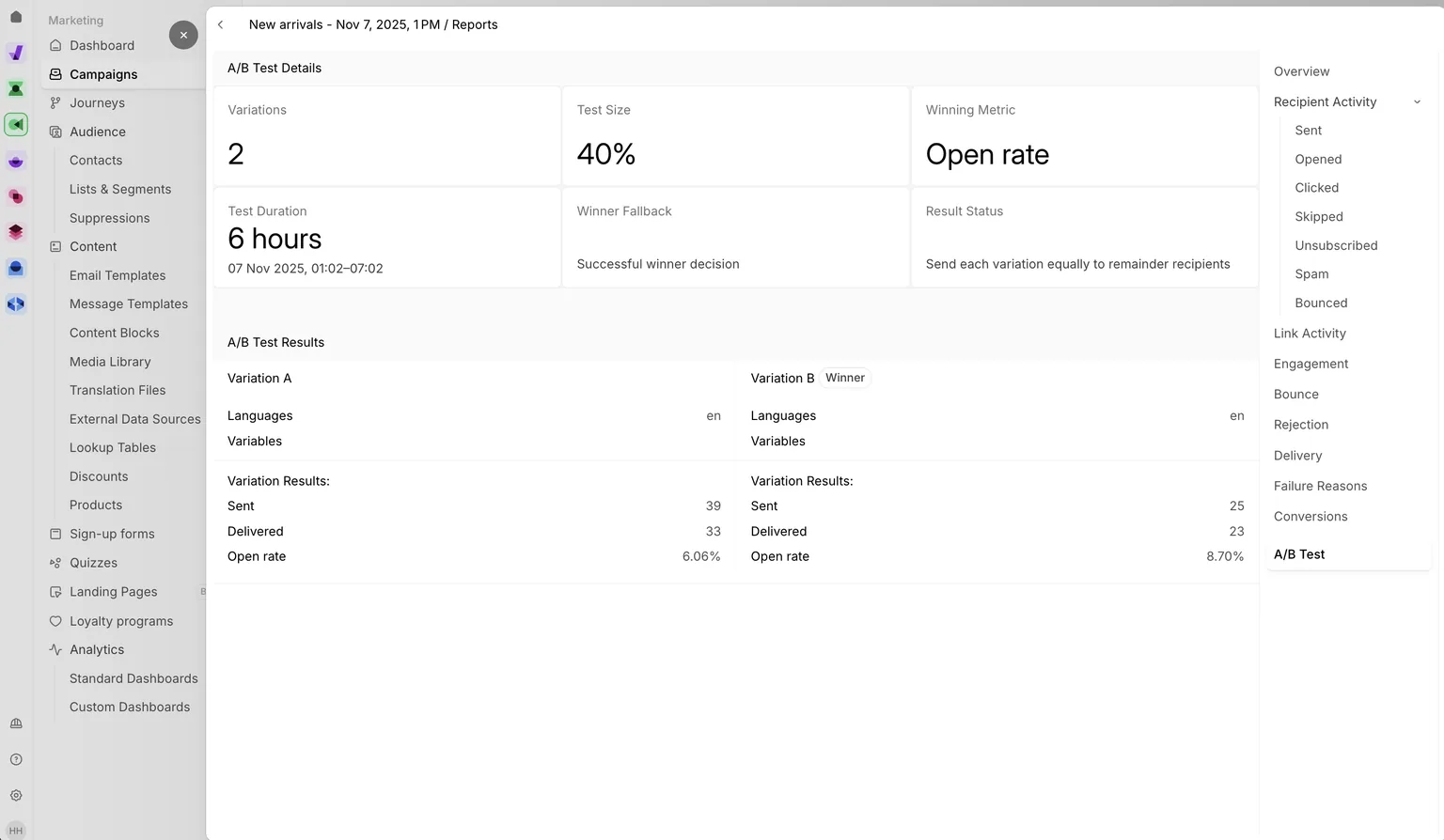
The winning variant will have a 'Winner' flag displayed next to its name.
1. Go to **Campaigns** and find the campaign that you want to view a report for.
2. Click the three dots on the right-hand side, then click **View report**.
3. In the overview section, switch between variations to see how each variation performed during the testing phase.
4. To see information about the test, click the **A/B Test** tab.\
Here, you'll be able to see:
* **A/B Test Details**: Variations, Test size, Winning metric, Test duration (with exact timestamps), and result status.
* **A/B Test Results**: Variation type, Subject (if testing emails), Template language, and Variables.
### Understanding the results
The **overview** section lets you compare each variation side-by-side using the same metrics available in a standard [campaign report](/applications/analytics/campaign-reports/how-to/view-campaign-reports.md), such as delivery rate, open rate, and click rate, depending on the channel. Switching between variations in this view is the quickest way to see which one is ahead on your key metric.
The **A/B Test** tab gives you the underlying test configuration alongside the results, so you can see not just which variation won, but also what was being tested — for example whether the test compared subject lines, template content, or variables — and how large the test audience was. This context is useful when deciding whether to trust the result or whether the test needs to be re-run with a larger sample.
{% hint style="info" %}
A variation is flagged as the winner only when the relative difference between the top two variations on the winning metric exceeds the configured threshold. Otherwise the report still shows performance for each variation, but no 'Winner' flag is displayed, and the remaining recipients receive what you chose under 'Winner fallback'. You may then want to re-run the test on a larger audience.
{% endhint %}
---
# Agent Instructions
This documentation is published with GitBook. GitBook is the documentation platform designed so that both humans and AI agents can read, navigate, and reason over technical content effectively. Learn more at gitbook.com.
## Querying This Documentation
If you need additional information that is not directly available in this page, you can query the documentation dynamically by asking a question.
Perform an HTTP GET request on the current page URL with the `ask` query parameter, and the optional `goal` query parameter:
```
GET https://messagebird.gitbook.io/applications/analytics/campaign-reports/how-to/view-a-b-test-campaign-reports.md?ask=&goal=
```
`ask` is the immediate question: it should be specific, self-contained, and written in natural language.
`goal` is optional and describes the broader end goal you are ultimately trying to accomplish on behalf of the user. GitBook uses it to tailor the answer towards what is most useful for that goal.
The response will contain a direct answer to the question and relevant excerpts and sources from the documentation.
Use this mechanism when the answer is not explicitly present in the current page, you need clarification or additional context, or you want to retrieve related documentation sections.